If you have ever noticed a horizontal tear cutting across your screen mid-game, you have experienced one of the most frustrating visual artifacts in PC gaming. That glitchy split image is called screen tearing, and it has been plaguing gamers since the early days of real-time 3D graphics.
Over the years, the industry has developed several technologies to combat it, and two of the most talked-about are V-Sync vs G-Sync.
Both aim to solve the same core problem, but they take very different approaches to doing so, and those differences have real consequences for your gaming experience. Whether you are building a new rig, shopping for a monitor, or just trying to figure out which setting to toggle in your game’s options menu, understanding how these technologies work will help you make a smarter decision.
Understanding the Core Problem
Your GPU and your monitor are two separate pieces of hardware, and they do not naturally speak the same language when it comes to timing. Your monitor refreshes its image at a fixed rate, measured in hertz (Hz). A 60Hz monitor updates the screen 60 times per second, a 144Hz monitor updates 144 times, and so on.
Your GPU, however, renders frames at a rate that fluctuates depending on how demanding the scene is. This is measured in frames per second (FPS).
When those two numbers fall out of sync, the monitor may start displaying a new frame before it has finished showing the previous one. The result is that two different frames appear on screen simultaneously, split by a visible horizontal line. That is screen tearing.
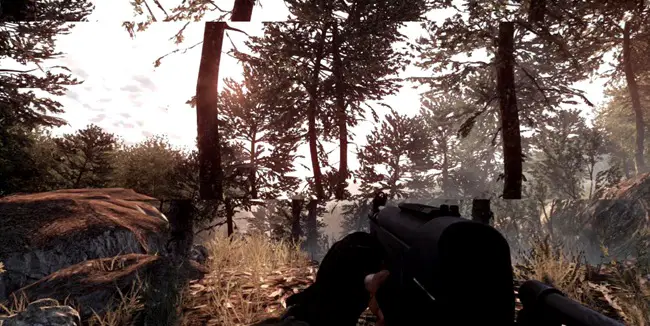
The challenge is that fixing tearing often introduces other problems, namely input lag and stuttering. The history of display sync technology is essentially the story of engineers trying to eliminate tearing without making those side effects worse.
What is V-Sync?
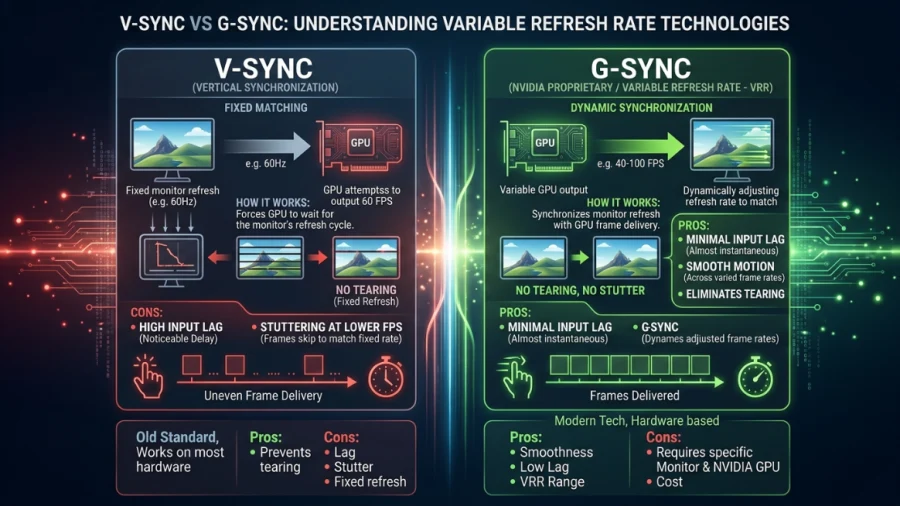
V-Sync, short for Vertical Synchronization, is the original solution to screen tearing. It works by capping your GPU’s output to match the monitor’s fixed refresh rate. If you have a 60Hz monitor, V-Sync limits your GPU to delivering no more than 60 frames per second, ensuring the two are always in step.
This approach does eliminate tearing effectively. It has been around for decades, it is supported by virtually every GPU and game on the market, and it costs nothing to use. For slow-paced games or cinematic single-player experiences where you are not chasing milliseconds, it can work perfectly well.
The problem is what happens when your GPU cannot keep up. If your frame rate drops below the monitor’s refresh rate, V-Sync does not gracefully reduce the cap. Instead, it snaps down to the next lowest divisor. On a 60Hz monitor, if your GPU drops below 60 FPS, V-Sync locks the output to 30 FPS. This sudden halving causes noticeable stuttering, which many players find even more disruptive than tearing.
V-Sync also introduces input lag. Because the GPU has to hold completed frames in a buffer until the monitor is ready to display them, there is an added delay between your mouse movement and what you see on screen. In competitive gaming, where reaction times are measured in milliseconds, this delay is a genuine disadvantage.
What is G-Sync?
G-Sync is NVIDIA’s answer to the shortcomings of V-Sync. Introduced in 2013, it flips the traditional relationship between GPU and monitor on its head. Instead of forcing the GPU to match the monitor’s fixed refresh rate, G-Sync makes the monitor adapt to the GPU’s output in real time.
This is made possible through a proprietary hardware module embedded inside compatible monitors. That module allows the display’s refresh rate to vary dynamically, staying in lock-step with whatever frame rate the GPU is currently producing.
If your GPU renders 87 frames in a second, the monitor refreshes 87 times. If it drops to 54, the monitor follows. The two are always synchronized, so tearing never occurs.
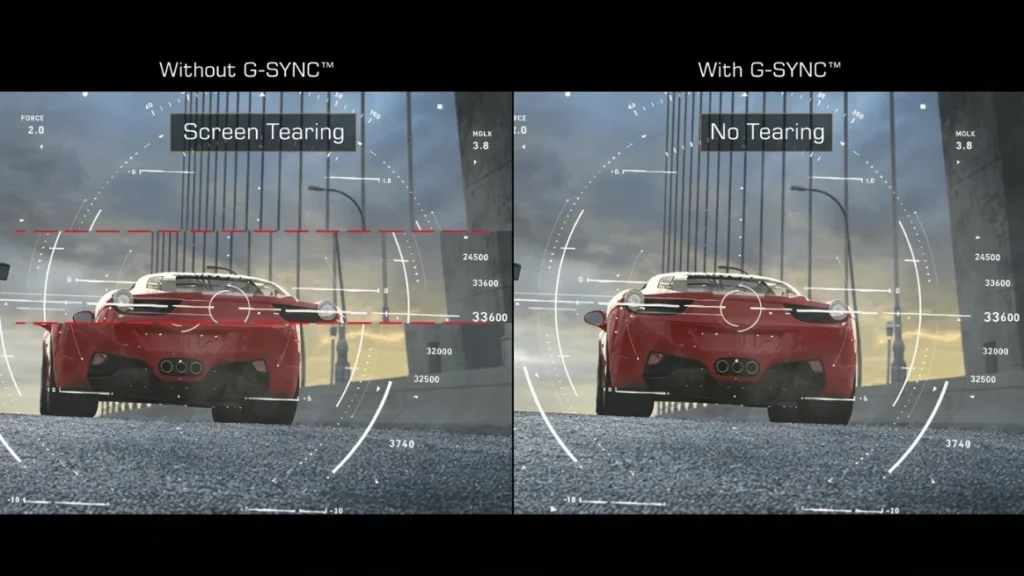
Because there is no frame buffering involved, input lag is dramatically reduced compared to V-Sync. And because the refresh rate adjusts fluidly rather than snapping between fixed values, the stuttering associated with V-Sync drops is also eliminated.
The result is a visibly smoother, more responsive experience, especially in graphically demanding games where frame rates fluctuate frequently.
It is worth noting the distinction between G-Sync and G-Sync Compatible. True G-Sync monitors contain NVIDIA’s dedicated hardware module and undergo rigorous testing, which is why they carry a significant price premium.
G-Sync Compatible monitors use the open Adaptive Sync standard (the same underlying technology as AMD’s FreeSync) and have been certified by NVIDIA to work with G-Sync features, though without the dedicated module.
They are more affordable and still deliver most of the benefits, but true G-Sync panels are generally held to a higher standard of performance.
Head-to-Head Comparison
When comparing these two technologies directly, the differences become very clear across several key areas.
Input lag is where G-Sync pulls ahead most decisively. V-Sync adds a meaningful buffer delay that can feel sluggish, particularly in fast-paced games. G-Sync maintains low latency because it never needs to hold frames in a queue.
Stuttering is another area where G-Sync wins. V-Sync’s tendency to halve the frame rate when performance dips is jarring, while G-Sync’s adaptive approach keeps motion consistently fluid across a wide range of frame rates, typically between 1Hz and the monitor’s maximum refresh rate.
Cost and compatibility favor V-Sync significantly. V-Sync is free, universal, and requires no special hardware. G-Sync requires an NVIDIA GPU and a compatible monitor, and true G-Sync displays often cost considerably more than comparable non-G-Sync panels. If you are running an AMD GPU, G-Sync is simply not an option, though FreeSync serves the same purpose on AMD hardware.
For competitive gaming, the calculus depends on your frame rate. If your GPU consistently hits frame rates at or above your monitor’s maximum refresh rate, V-Sync (or no sync at all) may actually be preferable since you eliminate the added latency entirely. G-Sync is at its best when frame rates are variable and below the monitor’s cap, which is exactly the scenario most graphically demanding games create.
What About FreeSync and HDMI VRR?
G-Sync is not the only adaptive sync technology on the market. AMD FreeSync is the open-standard alternative, built on the VESA Adaptive Sync specification. It works similarly to G-Sync, allowing the monitor’s refresh rate to vary with the GPU’s output, but it does not require a proprietary hardware module. This keeps costs down and makes it available across a wider range of monitors and price points.
For AMD GPU users, FreeSync is the natural equivalent of G-Sync, and it performs very well. For NVIDIA users, many FreeSync monitors have been certified as G-Sync Compatible, meaning you can use them with NVIDIA’s adaptive sync features, though with slightly less rigorous quality guarantees than a native G-Sync panel.
HDMI VRR, introduced with the HDMI 2.1 specification, brings adaptive sync to televisions and is increasingly relevant for console gamers on PlayStation 5 and Xbox Series X. It operates on the same principle and has expanded the reach of adaptive sync well beyond the PC gaming monitor market.
V-Sync vs G-Sync: Which Should You Use?
The right choice depends on your hardware, your budget, and how you game.
V-Sync makes sense if you do not own a G-Sync or FreeSync monitor, if you are playing slower single-player games where input lag is not critical, or if you are simply looking for a zero-cost fix to screen tearing. It is also a reasonable fallback when your GPU is powerful enough to consistently exceed your monitor’s refresh rate, since tearing becomes less of an issue at very high frame rates anyway.
G-Sync is the better choice if you already have a compatible monitor and NVIDIA GPU, if you play graphically demanding titles where frame rates fluctuate, or if you prioritize smooth, tear-free visuals without the stutter penalty. It is particularly valuable in the 60 to 144 FPS range where frame rate variation is most pronounced.
One popular strategy among competitive players is the G-Sync plus frame cap combination. By capping your frame rate just below the monitor’s maximum refresh rate using a tool like NVIDIA Inspector or RTSS, you keep G-Sync active and latency low while preventing the frame rate from exceeding the G-Sync range where tearing could theoretically return.
Conclusion
V-Sync and G-Sync both solve screen tearing, but they do so in fundamentally different ways with very different trade-offs. V-Sync is the universal, no-cost option that works everywhere but introduces input lag and stuttering under pressure. G-Sync is the premium, hardware-backed solution that delivers smoother, more responsive visuals at the cost of monitor and GPU compatibility requirements.
For most modern gamers with variable-rate GPU performance and a G-Sync or FreeSync monitor, adaptive sync is the clear winner over traditional V-Sync. The experience is simply better, and as monitor prices have come down and G-Sync Compatible certification has expanded, the barrier to entry has dropped considerably.
Display sync technology will keep evolving. HDMI VRR is maturing, DisplayPort 2.1 is expanding bandwidth, and even budget monitors now commonly include adaptive sync support. But for right now, if you are choosing between V-Sync and G-Sync, the decision comes down to one thing: do you have the hardware to take advantage of it? If you do, G-Sync is worth it.
Q&A
Do I need to enable V-Sync for G-Sync?
Generally, no. When G-Sync is active, it handles synchronization on its own and enabling V-Sync alongside it is unnecessary. However, one exception worth knowing is the G-Sync + V-Sync cap trick: enabling V-Sync within NVIDIA Control Panel while using G-Sync prevents screen tearing if your frame rate ever exceeds the monitor’s maximum refresh rate, without adding the usual input lag penalty. Most players can leave V-Sync off and let G-Sync do the work.
When should I use V-Sync?
V-Sync is best used when you do not have an adaptive sync monitor and screen tearing is visibly bothering you. It is also a reasonable choice in slower, single-player games where a few milliseconds of input lag will not affect your experience. If your GPU is powerful enough to consistently run well above your monitor’s refresh rate, V-Sync can act as a simple frame rate cap to reduce unnecessary GPU heat and power draw.
Is 120 FPS the same as 120Hz?
They measure different things but are closely related. 120Hz refers to how many times per second your monitor can refresh its image, while 120 FPS refers to how many frames per second your GPU is rendering. When both numbers match, you get the smoothest possible experience. Having 120 FPS on a 60Hz monitor means half those frames are never actually displayed, which is where sync technologies like G-Sync become valuable.
Does G-Sync lower FPS?
No, G-Sync does not reduce your frame rate. It simply synchronizes your monitor’s refresh rate to match whatever your GPU is already producing. Your GPU continues rendering frames at its natural pace. The only scenario where frame rate appears capped is if you have manually set a frame rate limit alongside G-Sync, which is actually a recommended practice to keep latency low and G-Sync operating in its optimal range.
Does V-Sync help the GPU?
Indirectly, yes. By capping the frame rate to match your monitor’s refresh rate, V-Sync prevents your GPU from rendering more frames than your display can show. This reduces unnecessary workload, which can lower GPU temperatures, decrease power consumption, and reduce fan noise. It will not improve gaming performance, but it can make your system run cooler and quieter in less demanding scenes where the GPU would otherwise be working harder than needed.
Read Next
LG UltraGear 24GQ50F-B Review: 1920×1080 165Hz 1ms MBR FreeSync Premium; Essential Features Without Breaking the Bank

HDR vs UHD: Enhancing Resolution and Contrast for the Best Visuals
HDR10 vs HLG: Comparing HDR Technologies
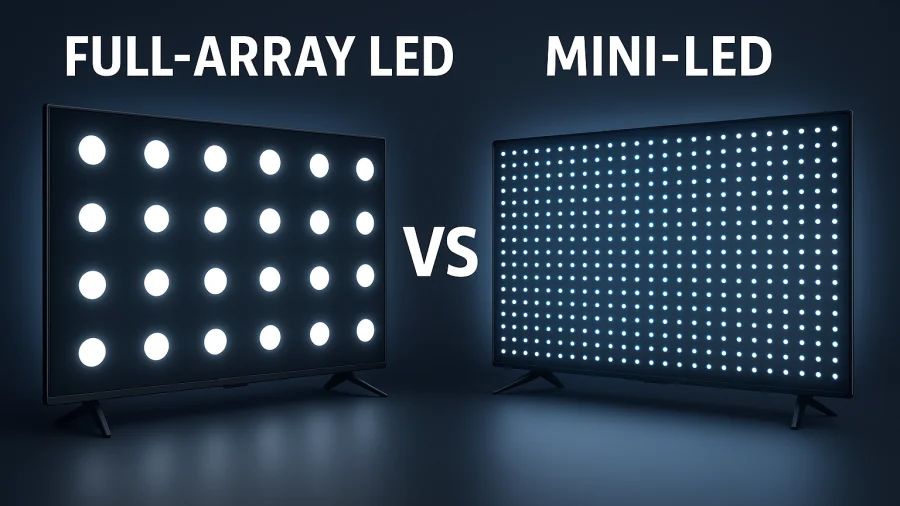
Full Array LED vs Mini-LED: Decoding the TV Backlighting
HDR True Black 400, 500, 600: New Era of Darker Blacks in Display Technology
QLED vs UHD: What’s the Difference and Which One Actually Matters?
Full Array LED vs OLED: Which Display Technology is Right for You?
UHD vs. QHD: Which Resolution Is Right for You?
HGiG Mode for HDR gaming: Explanation
Local Dimming On or Off: A Guide to the Best Settings
MSI Optix MAG342CQR Review: 1500R 1ms 3440×1440 144Hz; Curved UltraWide Gaming Experience
LG 32GQ950-B Review: Nano IPS 1ms (GtG) 144Hz; High-End 4K Gaming
Gorilla Glass and Beyond: The Materials Behind Ultra-Tough Screens