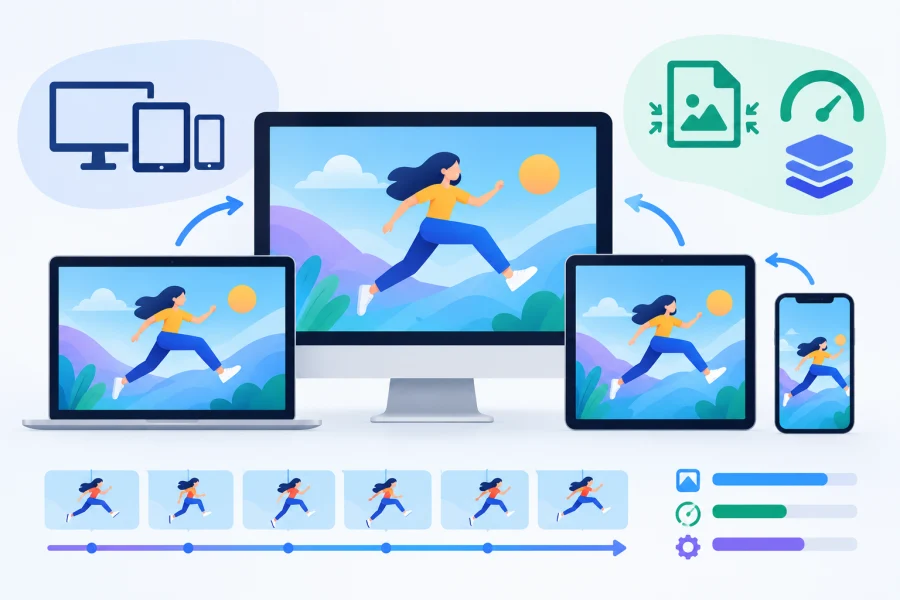
Animations make a page feel alive, but they are also one of the easiest ways to ruin a good layout. An animation that looks crisp on a laptop can turn soft on a phone, stretch awkwardly on an ultrawide monitor, or add several megabytes to a page that should load in a second.
The cause is usually the same: the animation was never sized for the display it ended up on.
This guide covers how to size and optimize web animations for different screens, from dimensions and pixel density to format choice, implementation, and testing.
Why animation sizing differs from image sizing
A still image is one file with one set of pixels. An animation is a sequence of them, so every sizing decision is multiplied by the number of frames. Doubling the width of an image roughly quadruples its pixel count.
Do the same to an animation with sixty frames and the cost is repeated sixty times, which is why a small oversight in dimensions quickly turns into a heavy download.
Three factors set animations apart. The first is frame count, since longer clips and higher frame rates mean more data to store and decode. The second is file weight, which grows quickly and hits mobile users on slow connections hardest.
The third is playback behavior: animations consume CPU and GPU time while they run, and on a battery-powered device a large looping animation can drain power noticeably.
File weight is also where most existing sites have an easy win. Older GIFs are the usual culprit, because the format stores motion inefficiently and a single looping GIF can outweigh the rest of a page.
Serving existing GIFs as MP4 video is usually the quickest fix, and Canva’s online video editor can handle the conversion: upload the GIF to a design, trim or crop it if needed, then download it as an MP4 file.
Matching dimensions to the display
Start with the size the animation occupies on screen, measured in CSS pixels rather than the size of the source file. If an animation appears in a 400 pixel wide slot, that is your baseline.
Then account for pixel density. Phones, premium laptops, and many monitors use high DPI screens that pack two or three physical pixels into each CSS pixel. A 400 pixel animation on a 2x screen needs 800 pixels of real data to look sharp, and a 3x phone wants 1200.
Serving only the 1x version makes edges and text look soft, while serving 3x to everyone wastes bandwidth. A sensible approach is to create 1x and 2x versions for important animations and reserve 3x for cases where fine detail matters.
The aspect ratio matters just as much. Common ratios include 16:9 for banners and video-style content, 4:3 for older displays and some tablets, 1:1 for square layouts, and 9:16 for vertical phone screens.
Pick the ratio that matches the container. Forcing a widescreen animation into a square slot means cropping or letterboxing, and both undermine the design. On phones, a square or vertical clip usually works better than a wide one.
Responsive delivery
Responsive CSS keeps animations from breaking layouts. The simplest rule is to set max-width: 100% with automatic height, which lets the animation shrink inside narrow containers while keeping its proportions. Also define width and height attributes, or a CSS aspect ratio, so the browser can reserve space before the file loads. This prevents layout shift.
For still fallback images and poster frames, the srcset attribute lets the browser choose the right file for each screen density. Pair it with the sizes attribute to declare the display width.
Finally, avoid upscaling. Stretching a small animation to fill a large container introduces blur and visible artifacts. If the design calls for a larger animation on big screens, export a larger source instead of letting CSS enlarge a small one.
Choosing the right format
Format choice often affects file weight more than dimensions do. Four options are common.
GIF is universally supported and easy to share, but it is a dated format. It is limited to 256 colors per frame, which causes banding in gradients and a washed-out look on modern wide-gamut and OLED displays. Its compression is also inefficient, so even short clips can reach several megabytes.
WebP and APNG both improve on it. Animated WebP produces much smaller files with better color, while APNG offers lossless quality and full transparency, although files can still be large. Browser support for both is now strong.
Video formats such as MP4 usually give the best results for anything longer than a second or two. Video codecs compress across frames and store only what changes. That is why converting an animated GIF to MP4 typically cuts file size dramatically, often by a factor of five to ten or more, while delivering full color and smoother playback.
For batch jobs, FFmpeg and HandBrake can run the same conversion locally if you prefer to script it.
The main trade-off is transparency. MP4 does not support an alpha channel, so animations that must float over changing backgrounds may need WebP or APNG instead. For anything with a solid or predictable background, MP4 is the strongest choice.
Implementation
Replacing a GIF with video takes only a few lines of HTML. This snippet reproduces the behavior of a looping GIF:
<video autoplay muted loop playsinline
width=”800″ height=”450″ poster=”preview.jpg”>
<source src=”animation.webm” type=”video/webm”>
<source src=”animation.mp4″ type=”video/mp4″>
</video>
Each attribute has a job. Autoplay starts playback automatically, muted is required because browsers block autoplay with sound, and loop repeats the clip.
The playsinline attribute stops iPhones from forcing the clip into fullscreen. The poster image appears while the file loads or if playback is blocked.
Listing a WebM source first lets supporting browsers use the smaller file, while MP4 acts as the universal fallback.
Testing
Never trust a single screen. Begin with browser dev tools, where device emulation lets you switch between phone and tablet sizes and change the device pixel ratio to 1x, 2x, and 3x.
Then check real hardware. Test on at least one phone, one laptop, and one 4K monitor if possible, because emulation cannot reproduce true color rendering, scaling, or performance. Watch for blur, cropping, banding in gradients, and stuttering during playback.
Finally, measure. Compare page weight and load time before and after optimization using the network panel in dev tools or a speed testing service. A successful change shows a lower transfer size and a faster load without any visible loss of quality. Use this checklist before publishing:
- Animation exported at its real display size, with a 2x version where needed
- Width, height, or aspect ratio defined to prevent layout shift
- Max width set so the animation scales down on small screens
- Format matched to the content, with video used for longer clips
- Autoplay, muted, loop, and playsinline set on video replacements
- Tested in emulation and on real devices
- File size and load time compared before and after
Conclusion
Sizing web animations well comes down to a few habits: measure the slot, match the pixel density, deliver responsively, choose an efficient format, and test on real screens.
Follow them and your animations will look sharp on everything from a small phone to a large 4K display without slowing your pages down.
Read Next
HDR10 vs 4K: Showdown for Superior Visuals
LCD vs Micro-OLED in VR Panels: What the Display Tech Means for Image Quality
MSI G2712 Review: IPS 1920×1080 1ms 170Hz; Blend of Performance and Value
HGiG Mode for HDR gaming: Explanation
ASUS ROG Strix OLED XG27AQDMG Review: QHD, Glossy OLED, 240Hz, 0.03ms, 99% DCI-P3; A Brilliant, Glossy Victory

4K Resolution: Ultimate Experience for TVs and Monitors
GTG vs MPRT: Display Response Times Explained
QLED Technology: The Science Behind the Brilliance

LTPO OLED Display Technology: AMOLED Gets Adaptive
HDR Gaming: Elevating Entertainment with Realism
LG 32GQ950-B Review: Nano IPS 1ms (GtG) 144Hz; High-End 4K Gaming
Local Dimming On or Off: A Guide to the Best Settings
HD vs HDR: Differences and Benefits