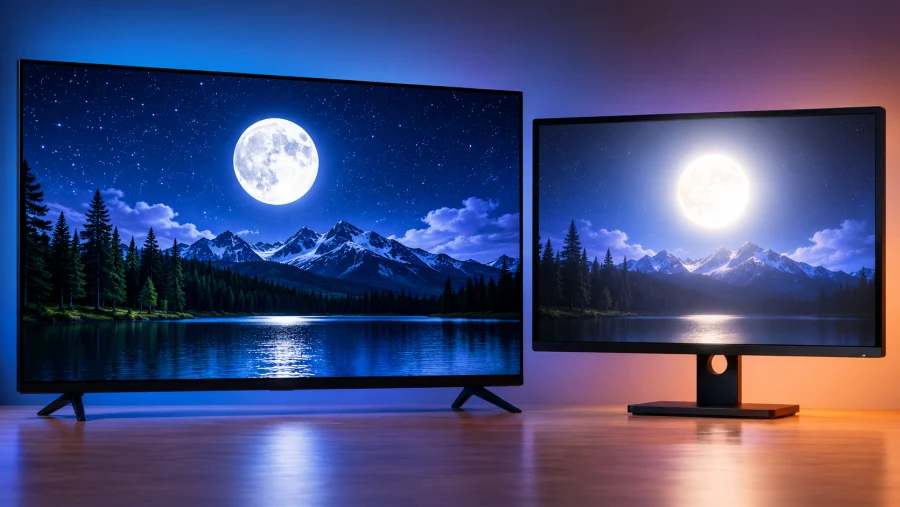
Picture a movie’s closing credits: crisp white text scrolling over a perfectly black screen. On some TVs and monitors, each line of text wears a faint glowing cloud, as if someone smeared light around the letters. That glow is called blooming, and it is also known as the halo effect.
It is one of the most common complaints about modern LCD displays, and one of the most misunderstood. Some people see it everywhere, while others never notice it. This article explains what blooming is, why it happens, how to test for it, how to reduce it on your current screen, and which display types avoid it.
What Is Blooming?
Blooming happens when a bright object on a dark background leaks light into the surrounding dark area. The bright part looks right, but the black space next to it turns gray or hazy, and the object appears to have a glow around it.
You will notice it most with star fields, closing credits, subtitles, mouse cursors, and bright HDR highlights such as street lamps at night. Dark room viewing makes it worse, because your eyes adapt to the darkness and become more sensitive to stray light.
The terms blooming and halo are used interchangeably. Strictly speaking, blooming describes light spreading from a bright area, while halo describes the visible ring or cloud that results. For practical purposes they describe the same symptom, and the same fixes apply.
Why Blooming Happens
The root cause is how LCD screens work. LCD pixels do not produce light. They act as tiny shutters that block or pass light from a backlight behind them. Because the shutters cannot block light perfectly, a bright backlight always leaks a little through, which lowers contrast.
To improve contrast, manufacturers use local dimming. The backlight is divided into backlight zones, and each zone can dim or brighten depending on what is on screen. Dark scenes get dark zones, and bright scenes get bright ones.
The catch is size. A zone is far larger than a pixel, often covering thousands of them. When a small bright object such as a subtitle sits inside a zone, that zone has to stay lit. Every dark pixel in the same zone receives that light too, and the result is a glow around the object.
Which displays are affected
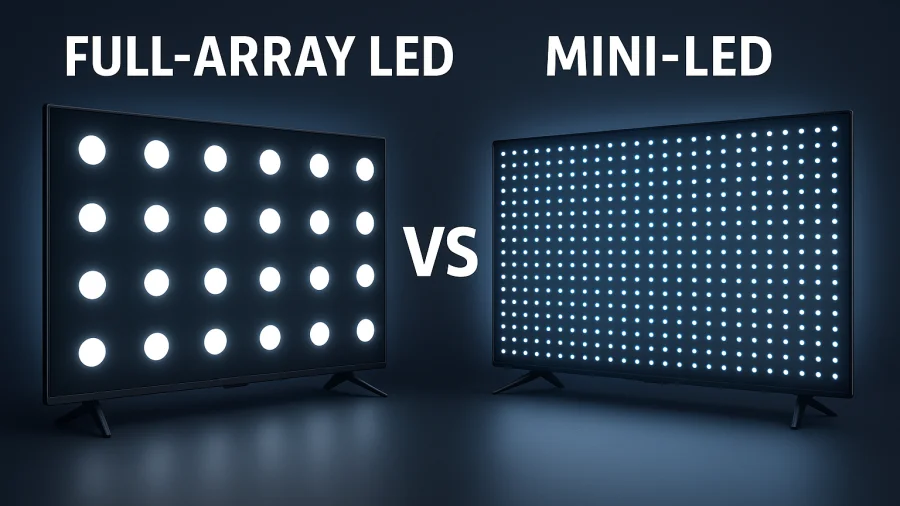
- Full-array (FALD) TVs place LEDs directly behind the panel in dozens or hundreds of zones. They offer good control, but blooming is still visible.
- Mini-LED displays use thousands of tiny LEDs and far more zones. Blooming is much smaller, though not eliminated.
- Edge-lit displays put LEDs along the screen edges, so dimming works in wide strips or barely at all. These tend to show the worst blooming, or no meaningful dimming.
Panel type matters too. VA panels have high native contrast, so they need less help from dimming, but they can show smearing as zones change.
IPS panels have lower native contrast and depend more heavily on their zones. Zone transition algorithms, peak brightness, and viewing angle also change how obvious blooming looks.
Things That Look Like Blooming but Are Not
Not every glow is blooming. Before changing any settings, rule out these lookalikes:
- IPS glow is a hazy brightening in the corners that changes as you move your head. It appears on dark scenes whether or not a bright object is present.
- Backlight bleed is uneven light leaking along the edges of the screen, usually most visible on an all-black image.
- Edge enhancement is a sharpening effect that draws bright outlines around objects. It looks like a halo, but it is created by image processing rather than the backlight.
- Overdrive artifacts on fast gaming monitors, often called inverse ghosting, leave bright trails behind moving objects.
- Reflections and glare from lamps or windows can mimic a haze across dark areas.
Here is a quick check. If the glow sticks to a bright object and stays put when you move your head, it is likely blooming.
If it shifts with your viewing angle, suspect IPS glow. If it only appears on moving objects, look at the overdrive setting.
How to Test for Blooming
Test in a dark room at your normal viewing distance. Play a starfield scene, white text on a black background, or a small white box on a black test pattern. Many free test videos and websites offer these, and calibration discs include them as well.
Check the screen head-on and from an angle, then repeat the test with local dimming set to off, low, medium, and high. Judge severity by how large the glow is, how bright it is, and whether you can see it in the content you actually watch.
A faint halo around a test pattern is not worth worrying about if you never notice it during movies or games.
How to Reduce Blooming on Your Current Display
Start with settings, since they cost nothing.
- Adjust local dimming. Low or medium often balances blooming against crushed shadow detail. Setting it to off removes zone-based blooming but makes blacks look gray.
- Turn off sharpening and edge enhancement. This eliminates outline halos immediately.
- Lower the backlight in dark rooms. Less light means less leakage into dark areas.
- Change the overdrive setting on a monitor if you see bright trails behind moving objects.
- Check your HDR settings. Adjusting tone mapping or peak brightness can soften harsh highlights.
- Add bias lighting, a soft light behind the screen, to reduce the contrast your eyes perceive between bright objects and dark surroundings.
- Update the firmware, since manufacturers sometimes refine their dimming algorithms after launch.
Be honest about the trade-off: less blooming usually means lower contrast or dimmer highlights. The goal is a balance you can live with, not perfection.
Display Types With Less or No Blooming
OLED and QD-OLED screens light each pixel individually. A white pixel can sit right next to a fully switched-off pixel, so blooming is essentially absent. The trade-offs include lower peak brightness than the best LCDs and burn-in considerations if you display static content for long periods.
Mini-LED sets with high zone counts are a strong alternative, particularly in bright rooms where their brightness shines. Newer approaches such as dual-layer LCD add a second panel to control light more precisely, though they remain rare and expensive.
Zone count alone does not guarantee good results. Algorithm quality matters just as much, so a well-tuned set with fewer zones can beat a poorly tuned one with more.
| Type | Blooming | Peak brightness | Price | Bright room |
|---|---|---|---|---|
| OLED | None | Moderate | High | Fair |
| Mini-LED | Low | Very high | Mid to high | Excellent |
| Standard FALD | Moderate | High | Mid | Good |
| Edge-lit | High | Moderate | Low | Fair |
Buying Advice
Before you buy, ask whether the reviewer measured blooming directly. Look for reviews that use real test scenes, such as starfields and subtitles, rather than relying on zone counts printed on a spec sheet. Then match the display to how you use it:
- Movies in a dark room: OLED is the safest choice.
- Gaming: OLED offers fast response with no blooming, while Mini-LED offers more brightness. Check reviews for cursor and HUD halos.
- HDR in a bright living room: Mini-LED often wins.
- Office work: blooming rarely matters, so prioritize sharpness and comfort.
Budget models usually show more blooming, while premium models reduce it at a higher cost.
Blooming is a trade-off of local dimming rather than a flaw in your particular screen. Tune your settings first, test with real content, and consider upgrading only if the glow still bothers you.
Read Next
MSI G2712 Review: IPS 1920×1080 1ms 170Hz; Blend of Performance and Value
Full Array Local Dimming: The Key to Superior Contrast
Direct Lit vs Edge Lit vs Full Array: Decoding TV Backlight Technology
MLA OLED: Brighter Displays with Micro Lens Array
What is My Screen Resolution

Best VPN for Security, Privacy, and Unblocking Content
LG UltraGear 24GQ50F-B Review: 1920×1080 165Hz 1ms MBR FreeSync Premium; Essential Features Without Breaking the Bank
Retina Displays vs. 300 DPI: A Deep Dive into Perceived Resolution
4K vs 5K Resolution: Which One Do You Really Need?
Full Array LED vs Mini-LED: Decoding the TV Backlighting
LG 32GQ950-B Review: Nano IPS 1ms (GtG) 144Hz; High-End 4K Gaming
HDR400: Understanding Entry-Level HDR Display Technology
QLED Technology: The Science Behind the Brilliance