Working remotely for a digital agency means navigating a relentless stream of communication, client feedback, and deep-focus deliverables. On any given day, an agency professional might be juggling Slack, Zoom, Figma, a headless CMS, and endless browser tabs.
Relying on a single 13-inch or 15-inch laptop screen is a major bottleneck. The constant need to “Alt-Tab” or swipe between virtual desktops increases cognitive load, drains productivity, and leads to visual fatigue.
Upgrading your display technology is arguably the fastest, most effective way to improve output and workplace ergonomics.
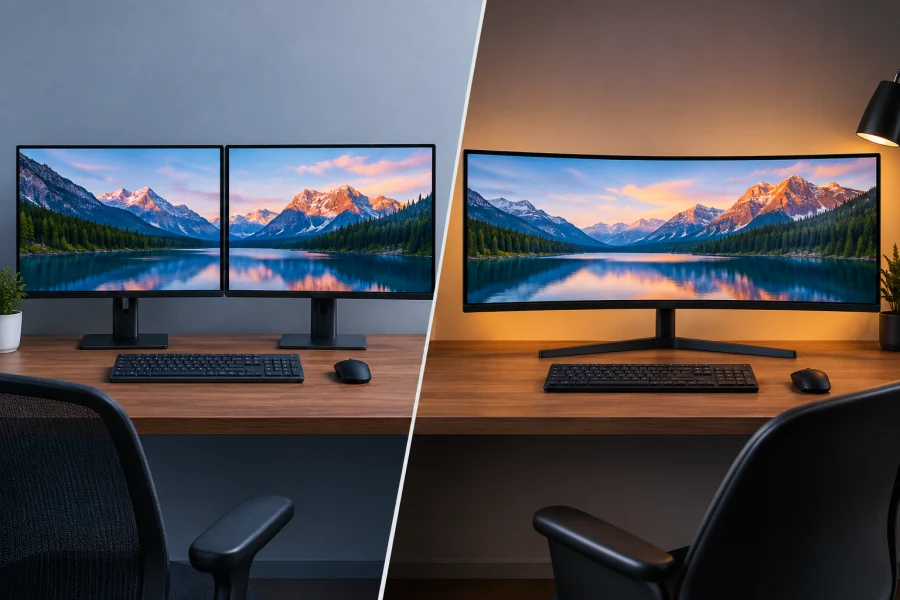
However, when it comes to expanding your screen real estate, the tech community is largely split into two passionate camps: those who swear by the segmented organization of a dual-monitor setup, and those who advocate for the seamless, bezel-free canvas of an ultrawide display.
Determining which setup reigns supreme depends heavily on panel technology, desk ergonomics, and the specific nature of your daily workflow. Let’s break down the technical advantages and practical drawbacks of each display strategy to find the perfect fit for your remote workstation.
The Case for Dual Monitors: Segmented Multitasking
The dual-monitor setup is the traditional powerhouse of the modern office, and for good reason. It offers unparalleled flexibility, cost-effectiveness, and the psychological benefit of physical boundary-setting on your digital desktop.
Physical Separation of Workflows The greatest advantage of two distinct monitors is the hard physical boundary between screens. This naturally encourages segmented multitasking.
You can dedicate your primary screen directly in front of you to “deep work”, such as writing copy, coding, or designing – while relegating the secondary screen to “shallow work” like email, team chat, or reference materials. This physical separation prevents incoming messages from overlaying your active workspace, helping maintain focus.
Cost-Effectiveness and Flexibility From a budget perspective, dual setups are highly customizable. You are not forced to buy two identical, top-tier displays. A common strategy for budget-conscious professionals is to invest heavily in a primary 27-inch 4K IPS panel boasting high color accuracy (like 99% DCI-P3 or sRGB coverage) for visual work.
For the secondary screen, a more affordable 24-inch 1080p panel is more than sufficient for reading text and monitoring Slack.
Furthermore, dual monitors offer the distinct advantage of variable orientation. Using a VESA mount, you can position your secondary monitor vertically (portrait mode). This 9:16 orientation is a game-changer for SEO specialists reading long search engine result pages, developers writing hundreds of lines of code, or copywriters reviewing long-form content.
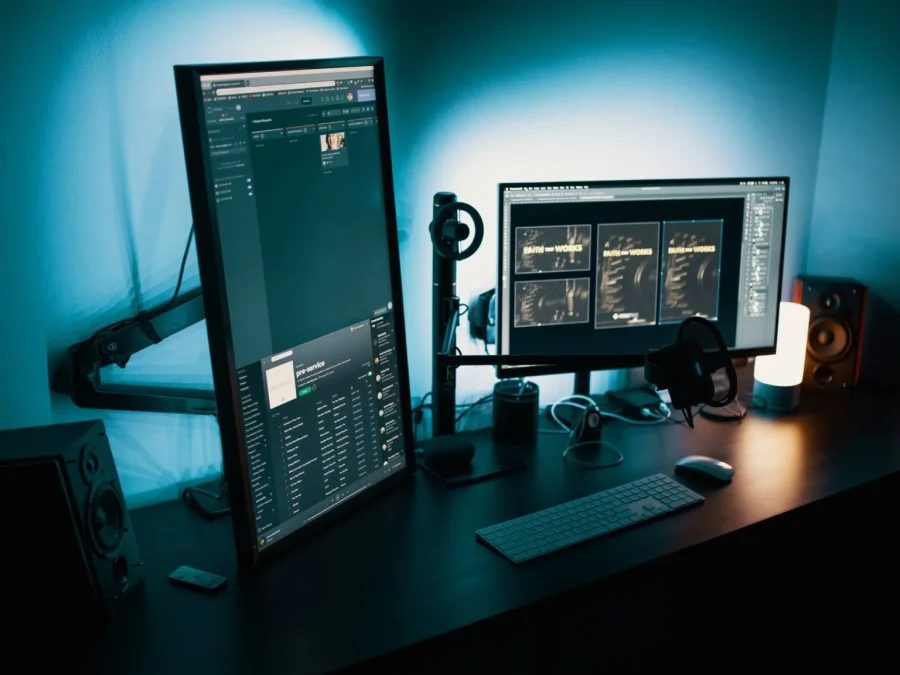
The Drawbacks of Dual Screens The most glaring issue with dual monitors is the “bezel gap.” Even with ultra-thin bezels, placing two monitors side-by-side creates a dead zone right in the center of your desk. To avoid staring directly at a plastic seam, users are forced to position one monitor directly in front and the other off to the side, which can lead to neck strain over time.
Additionally, dual setups require double the cables (two power cords, two HDMI or DisplayPort cables) and put a higher demand on your laptop’s GPU output ports.
The Case for Ultrawide Monitors: Seamless Real Estate
Over the past few years, ultrawide monitors have surged in popularity, offering a premium, cinematic computing experience. Typically featuring a 21:9 or massive 32:9 aspect ratio, these displays range from 34 inches to an immersive 49 inches diagonally.
Uninterrupted Visual Workflow The defining feature of an ultrawide monitor is the complete absence of center bezels. You get one massive, uninterrupted canvas. For creative professionals, this is a massive upgrade.
Video editors can stretch a Premiere Pro or Final Cut timeline across the entire width of the screen without a bezel slicing through their workspace. Financial analysts or account managers can view massive spreadsheets with dozens of columns without needing to scroll horizontally.

Aesthetic and Ergonomic Benefits Ultrawide monitors significantly reduce desk clutter. You only need a single power cable and a single display cable. Many modern ultrawides feature USB-C Power Delivery (PD), meaning a single cable can transmit video, transfer data, and charge your laptop simultaneously.
Ergonomically, premium ultrawides feature curved panels, usually rated between 1800R (a gentle curve) and 1000R (an aggressive curve matching the natural field of human vision).
This curvature ensures that the edges of the screen are at the exact same focal distance from your eyes as the center of the screen, drastically reducing eye strain and neck movement during long working sessions.
The Drawbacks of Ultrawides Ultrawides come with a premium price tag, especially if you want high-end features like OLED panels, high refresh rates, or true Thunderbolt 4 connectivity.
The biggest hidden drawback for remote workers, however, is screen sharing. When you share a 21:9 ultrawide screen over Zoom, Microsoft Teams, or Google Meet, the software forces the feed into the standard 16:9 aspect ratio of your colleagues’ laptops.
This results in heavy letterboxing (black bars on the top and bottom) and incredibly tiny text that is nearly impossible for clients or teammates to read. You are often forced to share specific application windows rather than your whole screen to bypass this issue.
Streamlining the Remote Agency Workflow
Display hardware is only half the battle. Managing the workflow across these expansive screens is the other. Agency workers and independent contractors often juggle complex deliverables across multiple client accounts in a single day.
When juggling deliverables across multiple screens, efficiency comes down to both hardware and workflow. While agency teams and contractors rely on software like a time tracking tool for consultants to log billable hours accurately, having the right display layout is what prevents constant tab-switching fatigue in the first place.
You need your time-logging software, project management tools, and actual deliverables visible simultaneously.
To maximize either monitor setup, utilizing window management software is essential. For Windows users, Microsoft’s PowerToys features a utility called FancyZones, which allows you to create complex, custom grid layouts that your windows will automatically snap into.
For macOS users, third-party apps like Magnet or Amethyst provide similar window-snapping capabilities, ensuring you don’t waste time manually dragging and resizing application borders.
Choosing the Right Setup for Your Agency Role
Ultimately, there is no universal “best” monitor setup; the right choice is dictated by the specific software you use and the tasks you perform daily.
- Copywriters, SEO Specialists, and Developers: A dual-monitor setup is highly recommended. The ability to flip a secondary monitor into portrait mode is incredibly valuable for reading long text documents, reviewing code, or analyzing vertical data feeds. The segmented nature of the screens helps keep research separate from the primary writing or coding environment.
- Video Editors, Graphic Designers, and Audio Engineers: An ultrawide monitor is the undisputed winner. The lack of bezels provides a seamless canvas for horizontal timelines and wide creative workspaces. Designers should prioritize ultrawides with IPS or OLED panels that offer exceptional color accuracy and deep contrast ratios.
- Project Managers and Account Executives: Either setup works well, but a massive 34-inch ultrawide can be particularly useful for keeping a project management dashboard (like Asana or Monday.com) open on one half of the screen while keeping email and Slack open on the other half, without the visual interruption of a plastic bezel.
Your display setup is the primary interface between you and your work. By evaluating your daily technical requirements, budget, and ergonomic needs, you can build a workstation that minimizes digital friction and allows you to focus entirely on the work that matters.
Read Next
Dell G2422HS Review: 165Hz 1ms 1920 x 1080 IPS; Budget Gamer’s Delight

Gorilla Glass and Beyond: The Materials Behind Ultra-Tough Screens
HD vs HDR: Differences and Benefits

2K Resolution Size: Understanding the Midpoint Between HD and 4K
Local Dimming On or Off: A Guide to the Best Settings

GTG vs MPRT: Display Response Times Explained
MLA OLED: Brighter Displays with Micro Lens Array
QHD vs. OLED: Resolution, Panel Tech, and What Actually Matters
Full Array LED vs Mini-LED: Decoding the TV Backlighting
UWQHD: Ultra-Wide Quad HD Resolution Explained
Samsung Odyssey OLED G8/G80SD S32DG80 Review: 4K 240Hz 0.03ms; Ultra-Sharp Masterpiece for Gamers
Full Array LED vs OLED: Which Display Technology is Right for You?
MSI Optix MAG342CQR Review: 1500R 1ms 3440×1440 144Hz; Curved UltraWide Gaming Experience