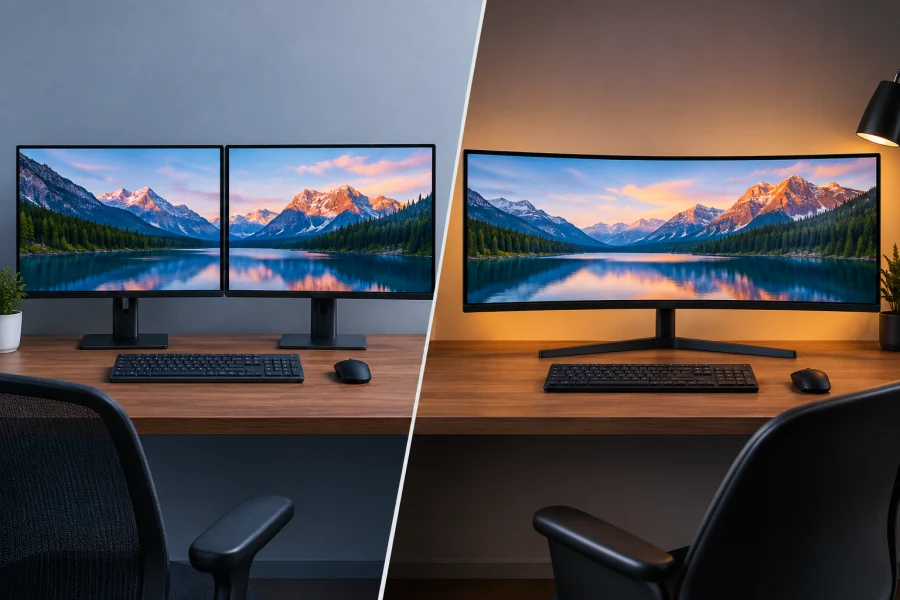
Few desk upgrades spark as much debate as this one. Do you buy a single wide, curved screen, or put two separate displays side by side? Both give you far more room than a lone monitor, and both have loyal fans. The right answer depends less on specs than on how you actually work and play.
This guide is for remote workers, gamers, and creators who are ready to upgrade and want a straight comparison. We will cover workspace, gaming, comfort, cost, and setup, then finish with a clear recommendation for each type of user.
The Basics
An ultrawide monitor stretches the picture into a wider shape. The most common format is 21:9, with resolutions like 3440×1440 on screens between 34 and 38 inches. The 32:9 format, often called super-ultrawide, reaches 5120×1440 on panels around 49 inches.
A dual monitor setup uses two separate panels, usually in the standard 16:9 shape or the slightly taller 16:10. You can match them or mix them, and the most popular pairings are two 24-inch or two 27-inch displays.
Size comparisons help. A 34-inch ultrawide has about the same height as a 27-inch monitor but is roughly a third wider. Two 27-inch monitors offer much more total width, and a 49-inch 32:9 model is the closest single-panel match for that pair.
Workspace and Productivity
On raw pixels, a 3440×1440 ultrawide gives you about 5 million, while two 27-inch 1440p monitors give you about 7.4 million. Two 1080p monitors land near 4.1 million, so a good ultrawide can beat a budget pair. More pixels are not automatically better, though. What matters is how easily you can arrange your windows.

That is where window management comes in. A single huge canvas is awkward if every app opens full width, so ultrawide owners should install a snapping tool such as PowerToys FancyZones on Windows or Rectangle on Mac. These let you carve the screen into columns and snap windows into place.
Dual monitors need less of this because the split is built in, and each app can simply live on its own screen.
How the two setups compare depends on the work:
- Office and multitasking: Dual monitors make it easy to keep a video call on one screen and notes or email on the other. An ultrawide handles two documents side by side nicely, but a full-screen call can swallow the whole canvas.
- Programming: An ultrawide fits code, a terminal, and documentation in three columns without a break. A dual setup with one screen turned to portrait is excellent for reading long files.
- Creative work: Video editors and music producers love the long, uninterrupted timeline an ultrawide provides. Designers often prefer a second screen for palettes and reference images.
- Spreadsheets and data: Wide spreadsheets and trading dashboards are a natural fit for an ultrawide, since nothing is cut in half.
The bezel is the thin frame around each panel, and it is the biggest practical difference. With two monitors, the seam sits in the middle of your field of view, and many people respond by centering one screen and treating the other as a side display.
An ultrawide has no seam at all, which makes spreadsheets, timelines, and wide documents far more pleasant. Slim-bezel monitors shrink the gap, but they never remove it.
Gaming and Entertainment
For gaming, the ultrawide has a clear edge in immersion. A curved 21:9 panel fills more of your peripheral vision, which makes racing games, flight sims, and open-world adventures feel bigger. Most modern games support the wider shape, but some titles still stretch the interface, and cutscenes are often locked to 16:9 and shown with black bars at the sides.

Performance is the other factor. Ultrawide resolutions push more pixels, so you need a stronger graphics card to hold a high refresh rate. A 3440×1440 screen demands roughly 30 percent more from your GPU than a standard 2560×1440 display, and a 32:9 panel demands about double.
If you play competitive shooters at high frame rates, a single 16:9 gaming monitor plus a second screen can be the smarter choice.
That second screen is the strength of the dual approach. You can keep Discord, a streaming window, a walkthrough, or a browser open without leaving the game. Some players also like the clean separation between play and everything else.
Movies and streaming favor neither setup perfectly. Most video is 16:9, so an ultrawide shows black bars on the sides, a problem known as pillarboxing. Dual monitors avoid that by letting you watch full screen on one panel. Many films are shot in even wider ratios, though, so they fill an ultrawide nicely.
Ergonomics and Comfort
Good ergonomics come down to how much you move your head and eyes. On a dual setup, you turn your head to look at the second screen, which can strain your neck if you use both equally. On an ultrawide, your eyes sweep across one surface, which is generally gentler, although the far edges of a very wide panel can be tiring to read.
Curvature matters here. A curve of around 1800R to 1000R keeps the edges at a more consistent distance from your eyes, which reduces the need to turn your head. Curved screens also need depth, so make sure your desk allows a viewing distance of roughly two to three feet, and more for a 49-inch model.
A monitor arm helps either way. For dual monitors, an arm lets you angle the screens inward and align the tops of the panels with your eye level. For an ultrawide, an arm frees up desk space and makes it easier to set the right height and distance. Whichever you choose, keep the main screen directly in front of you and the top edge at or just below eye level.
Flexibility, Setup, and Cost
Dual monitors win on flexibility. You can mix sizes and resolutions, rotate one panel into portrait orientation for coding or reading, and replace a single display if it fails. Screen sharing is also easier, because you can present one whole monitor while keeping private notes on the other.
Ultrawides win on simplicity. There is one panel, one stand, and a smaller desk footprint with less cable clutter. Many models include USB-C with power delivery, so a laptop can connect through a single cable for video, charging, and peripherals. That makes docking a laptop effortless. The trade-off is that everything depends on one panel. If it breaks, you lose your whole display.
Price depends on the tier:
- Under $300: You can buy two decent 24-inch monitors, but a quality ultrawide at this price is rare and usually compromises on resolution or panel quality.
- $300 to $600: This is the sweet spot for a good 34-inch ultrawide, and also for a pair of 27-inch 1440p monitors.
- $600 and up: Premium 34-inch OLED models and 49-inch super-ultrawides live here, as do high-end matched pairs.
Watch for hidden costs. A dual-monitor arm, extra cables, and a graphics card with enough outputs can add up. An ultrawide at high resolution may require a GPU upgrade, and some older laptops cannot drive 5120×1440 at all, so check your ports before you buy.
Pros and Cons Table
| Category | Ultrawide | Dual Monitors |
|---|---|---|
| Price | Higher for quality models | Cheaper for equivalent total space |
| Workspace | Seamless, no gap | More total area, bezel in the middle |
| Immersion | Excellent for games and film | Weaker, but great for multitasking |
| Flexibility | Limited to one panel | Mix sizes, rotate, replace easily |
| Ergonomics | Less head turning, needs desk depth | More head turning, easy to position |
| Setup | One cable, small footprint | Two cables, more desk space |
Hybrid Options
If you cannot decide, there are two middle paths. The first is an ultrawide paired with a smaller vertical monitor, which gives you a wide main canvas plus a tall strip for chat, email, or reading. The second is a 32:9 super-ultrawide, which behaves like two monitors in one with no bezel gap. It needs a deep desk and a powerful GPU, but it is the closest thing to having both worlds.
Before committing, check return policies, or try the screens in a store if you can. A monitor that looks perfect in a review may feel too wide or too tall in your own space.
Verdict
Choose an ultrawide if you value a seamless canvas, play immersive games, edit video, work in spreadsheets, or want a tidy desk with a single cable. It suits people who like one big workspace and have the desk depth and GPU power to support it.
Choose dual monitors if you want flexibility, need a separate screen for calls and chat, prefer portrait orientation for coding, or are working to a tight budget. It suits people who like each app to have its own home.
If you are still torn, start with the one that fits your daily work, not your wish list. For most people who work mainly with documents and calls, dual monitors are the practical pick. For people who game, create, or live in wide data, an ultrawide is hard to beat.
Q&A
What does ultrawide mean?
An ultrawide monitor has a wider aspect ratio than a standard 16:9 screen, usually 21:9 or 32:9. The extra width gives you more horizontal space for windows, timelines, and games without adding much height. Common sizes range from 34 to 49 inches, often with a curved panel.
Is 3440×1440 as good as 4K?
Not in terms of sharpness. A 4K screen (3840×2160) has about 8.3 million pixels, while 3440×1440 has about 5 million, so 4K is roughly 67 percent denser in raw pixels. However, 3440×1440 gives you a wider view, needs less GPU power, and runs at higher frame rates more easily. Which is better depends on whether you value detail or width and smoothness.
Why don’t pro gamers use ultrawide?
Most professional players use 24 to 27 inch 16:9 monitors with very high refresh rates, often 240Hz or more. Smaller screens let them see the whole image without moving their eyes, and lower resolutions help them hit maximum frame rates. Many esports tournaments also supply standardized monitors, and some competitive games do not fully support ultrawide. For casual and immersive gaming, ultrawides remain a popular choice.
Is 3440×1440 closer to 4K or 2K?
It is closer to 2K, usually meaning 1440p. It shares the same 1440 pixel height as a standard 2560×1440 display and has similar sharpness at comparable screen heights. The only difference is the extra width, which adds about 34 percent more pixels than 2560×1440. That still leaves it well below the pixel count of 4K.
Read Next
Asus TUF Gaming VG289Q1A Review: A Budget-Friendly 4K Monitor for Gamers and Content Creators

1440p Resolution: The Definitive Guide to QHD
HDR Gaming: Elevating Entertainment with Realism

Blue PHOLED: Illuminating The Future of High-Efficiency Displays
HDR10 vs 4K: Showdown for Superior Visuals
Direct Lit vs Edge Lit vs Full Array: Decoding TV Backlight Technology
FHD vs 4K: Is the Upgrade Worth It?

Hybrid Log–Gamma (HLG): Combining SDR and HDR
UWQHD: Ultra-Wide Quad HD Resolution Explained
UHD vs. QHD: Which Resolution Is Right for You?
60Hz vs 120Hz vs 144Hz TV Refresh Rates: Movies, Sports, and Gaming

Mini LED vs OLED: Which Display Technology Reigns Supreme?
HDR Tone Mapping on TVs