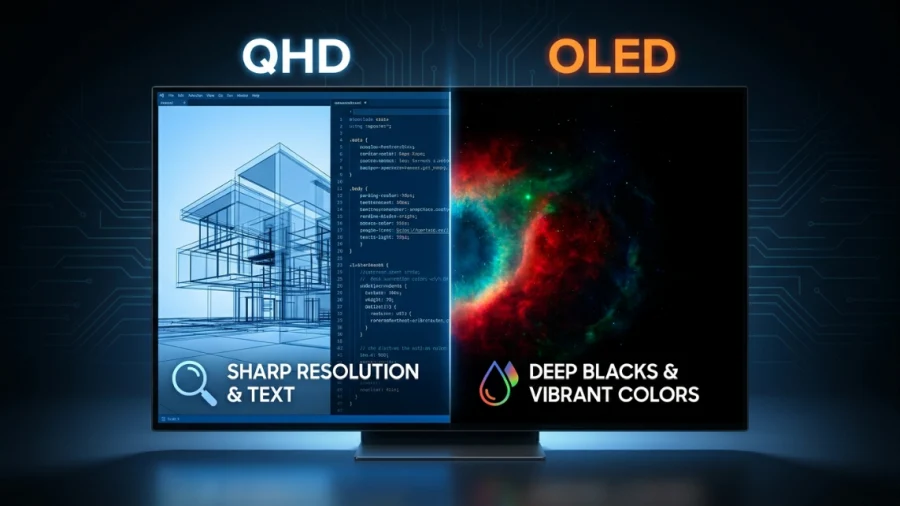
What is 1440p?
There is a resolution that sits quietly between the familiar and the extraordinary, demanding little in the way of sacrifice while delivering a genuine leap in visual quality. That resolution is 1440p, also known as Quad HD (QHD), and it has earned its place as the preferred choice across gaming, creative work, and everyday computing.
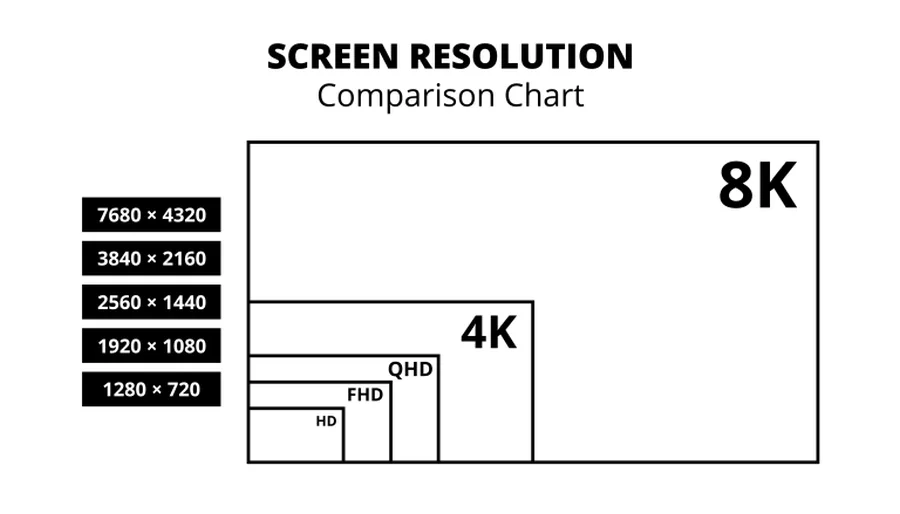
Technically, 1440p refers to a display resolution of 2560 x 1440 pixels. The “Quad HD” designation comes from the fact that QHD contains exactly four times the pixels of 720p HD.
The Goldilocks analogy fits well: Full HD (1920 x 1080) shows its age on larger screens, while 4K (3840 x 2160) imposes hardware costs many users cannot justify. QHD splits the difference in the best possible way.
Historically, 1080p dominated the monitor market through the early-to-mid 2010s. As GPU performance improved and panel manufacturing costs fell, 1440p monitors emerged in the enthusiast space around 2013-2014.
Early adopters paid a significant premium for the privilege. By the early 2020s, however, QHD had become the new mainstream standard for anyone spending slightly above entry-level prices, with high-refresh-rate 1440p panels replacing 1080p as the default recommendation for serious users across gaming and professional contexts alike.
The Technical Breakdown
Pixel density, measured in pixels per inch (PPI), explains why 1440p looks as good as it does. At 27 inches, a 1440p display delivers approximately 109 PPI versus roughly 82 PPI for 1080p at the same size.
That difference is visible to the naked eye: text appears sharper, fine image details resolve more cleanly, and the overall impression shifts from soft to crisp.
This is why screen size and resolution are always discussed together. The industry has settled on 27 inches as the ideal pairing for 1440p, balancing sharpness and screen real estate at typical viewing distances. At 32 inches, pixel density drops to around 92 PPI, which begins to feel slightly soft.
The standard aspect ratio is 16:9, matching 1080p and 4K. However, 1440p also forms the basis for the most popular ultrawide resolution: 3440 x 1440 at 21:9. These panels have developed a dedicated following among simulation gamers and professionals who benefit from panoramic horizontal space.

The raw pixel math tells a compelling story. QHD contains approximately 3.69 million pixels versus 2.07 million for 1080p. That is roughly 78% more visual information on screen at any given moment.
On a well-calibrated monitor with good panel quality, the difference between the two resolutions is immediately apparent even to users who have never thought carefully about display specifications before.
1440p for Gaming
Gaming is where 1440p has made its most decisive impact. The central tension in PC gaming is the tradeoff between visual fidelity and frame rate, and QHD occupies a uniquely favorable position in that negotiation.
Competitive gamers have largely embraced 1440p over 4K for a straightforward reason: a GPU that comfortably pushes 100+ FPS at 1440p may struggle to hit 60 FPS at 4K with equivalent settings. For games where reaction time matters, fluid motion at 1440p is far more valuable than additional pixel density at 4K.
Mid-to-high-end cards from AMD and NVIDIA are well-suited to 1440p gaming, and the market targeting this resolution is robust and competitive.
Flagship cards are not required, which keeps the total system cost reasonable. The CPU becomes a less significant bottleneck at 1440p than at 1080p, since the GPU has more rendering work per frame, naturally shifting the limiting factor away from the processor.
The combination most cited as the gaming sweet spot is 1440p at 144Hz or 165Hz. A 144Hz display refreshes 144 times per second versus 60 for a standard monitor. When paired with a GPU capable of matching that refresh rate, the result is gameplay that feels dramatically smoother and more responsive.
The 1440p at 144Hz pairing represents the current holy grail for enthusiast gaming: sharp enough to look excellent, fast enough to feel excellent.
1440p for Productivity and Creative Work
The case for 1440p extends well beyond gaming. At QHD, a 27-inch monitor can comfortably display two documents side by side with enough width for each to be genuinely readable. Video editors gain more visible timeline space, and spreadsheet users can see more rows and columns simultaneously without scrolling.
Text clarity at 1440p is noticeably improved over 1080p, which matters for anyone reading and writing for hours each day. QHD also avoids a common frustration with 4K: display scaling.
On Windows, 4K at 27 inches often requires 150-200% scaling to make interface elements a comfortable size, which can introduce blurriness in apps not designed for high-DPI environments. At 1440p, 100% scaling is typically usable and 125% remains sharp.
For color-critical work, QHD monitors benefit from a strong correlation with IPS panel technology. A large proportion of the QHD market uses IPS or IPS-variant panels offering accurate color reproduction, and designers, photographers, and colorists will find plenty of options covering full sRGB and DCI-P3 color spaces.
Comparison: 1440p vs. The Field
1440p vs. 1080p
The upgrade is one of the most impactful display improvements available in the mid-range market. On a 27-inch screen, the difference in sharpness is obvious and immediate. 1440p monitors are now available at prices that were firmly 1080p territory just a few years ago, making the jump easier to justify than ever.
It is most worthwhile for users on 24-inch or larger displays who spend significant time reading, doing creative work, or gaming.
1440p vs. 4K
The comparison is more nuanced. On a 27-inch monitor, the perceptible sharpness difference between 1440p and 4K is real but less dramatic than the jump from 1080p to 1440p. The human eye’s ability to resolve individual pixels at typical desk viewing distances diminishes the benefit.
On 32-inch or larger panels, 4K makes a stronger case. The hardware cost gap remains significant, and for most users the performance and cost profile of 4K represents diminishing returns relative to a well-configured 1440p setup.
Buying Guide: What to Look For
Panel Types
IPS panels offer excellent color accuracy and wide viewing angles, making them the default recommendation for most users. VA panels trade some color accuracy for superior contrast ratios, which benefits movies and atmospheric games with dark scenes. OLED delivers perfect blacks and extraordinary contrast, but carries a price premium and requires some care around burn-in.
Refresh Rates
A 60Hz panel is adequate for office work and casual browsing. Anyone gaming in fast-paced genres should target 144Hz as a minimum, with 165Hz and 240Hz options available for those who want the maximum. Higher refresh rates also improve general desktop use in subtle but real ways: scrolling, cursor movement, and animations all feel noticeably smoother.
Size
For 1440p, 27 inches is the widely recommended sweet spot, offering high pixel density without requiring display scaling. Those at greater viewing distances may prefer 32 inches, accepting a modest reduction in sharpness in exchange for a larger image.
Future-Proofing: Is 1440p Here to Stay?
The installed base of 1440p monitors is enormous and deeply embedded in the hardware ecosystem. GPU manufacturers explicitly benchmark and market products with 1440p as a primary target, and monitor manufacturers continue investing in new panels with improved refresh rates and panel technologies.
AI-based upscaling has further strengthened 1440p’s position. NVIDIA’s DLSS and AMD’s FSR allow games to render at a lower internal resolution and reconstruct a higher-quality image using AI or algorithmic techniques.
These tools make high-quality 1440p output accessible to a wider range of hardware than ever before, and they extend the resolution’s relevance as GPUs continue to evolve. Far from being a transitional stepping stone, 1440p looks set to remain a primary rendering target for the foreseeable future.
Conclusion
1440p remains the resolution that offers the best overall value for the widest range of users. It is sharp enough to look genuinely excellent, affordable enough that high-quality panels are available at competitive prices, and forgiving enough on GPU hardware that high frame rates remain achievable without flagship-tier investment.
For the dedicated gamer, a 27-inch IPS or OLED panel at 144Hz or higher paired with a capable mid-to-high-end GPU is the target configuration.
For the office worker, a 27-inch IPS panel at 60Hz delivers transformative text clarity and real estate gains over 1080p at a very accessible price point. For the creative professional, a color-accurate panel with wide gamut coverage provides the detail needed for exacting work without the scaling complications of 4K.
Whatever the use case, the conclusion is consistent: 1440p is not a compromise or a temporary placeholder on the way to something better. It is a considered choice, and more often than not, it is the right one.
Q&A
Is 2K or QHD better?
They are the same thing in practice. Strictly speaking, 2K refers to a 2048 x 1080 resolution used in cinema, but the term has been so widely misused in consumer marketing that it has become a informal synonym for QHD (2560 x 1440). When a monitor is advertised as “2K,” it almost always means 1440p.
Can the human eye see 1440p?
Yes, clearly. At typical desktop viewing distances of 60-80 cm, the human eye can resolve detail well beyond 1440p on a 27-inch screen. The approximately 109 PPI that QHD delivers at that size sits comfortably within the range where individual pixels are visible, which is precisely why the upgrade from 1080p looks so noticeably sharper.
Is 1440p really noticeable?
Absolutely, especially coming from 1080p on a 24-inch or larger monitor. Text edges appear crisper, fine details in images and games resolve more clearly, and the overall image feels tighter. The difference is most striking in text-heavy work and in games with detailed environments. Side by side, the two resolutions are immediately distinguishable.
Why does everything look smaller on 1440p?
Because more pixels are packed into the same screen area, each interface element takes up a smaller portion of the display. A desktop icon or browser tab that occupied a certain percentage of a 1080p screen now occupies less at 1440p. Adjusting Windows display scaling to 125% restores comfortable element sizes while retaining most of the sharpness benefit.
Read Next
LCD vs Micro-OLED in VR Panels: What the Display Tech Means for Image Quality
1ms MPRT Response Time: The Key to Smoother Gaming

144Hz vs 240Hz: Which Refresh Rate Actually Matters?
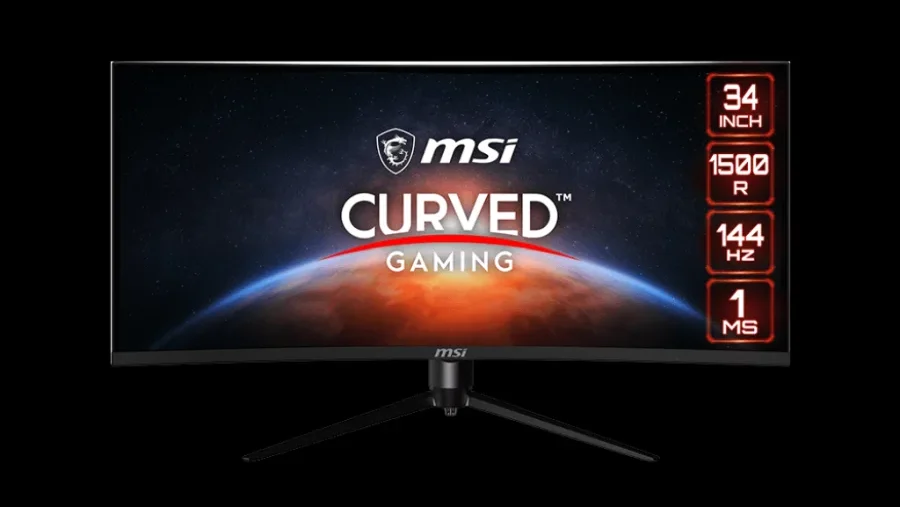
MSI Optix MAG342CQR Review: 1500R 1ms 3440×1440 144Hz; Curved UltraWide Gaming Experience
QLED vs LED: Which TV Should You Actually Buy?
Local Dimming On or Off: A Guide to the Best Settings
HDR10 vs 4K: Showdown for Superior Visuals
Full Array LED vs OLED: Which Display Technology is Right for You?
GTG vs MPRT: Display Response Times Explained
WQHD vs QHD – Understanding the Differences and Choosing the Right Resolution
Asus TUF Gaming VG289Q1A Review: A Budget-Friendly 4K Monitor for Gamers and Content Creators
V-SYNC: What Is It And Should You Use It?
Full Array Local Dimming: The Key to Superior Contrast