Every creator reaches the same decision at the export screen: should this video be 720p, 1080p, or 4K? Pick too low and your footage looks soft on big screens. Pick too high and you spend hours rendering and uploading, only for most viewers to watch on a phone anyway.
The right choice depends on your content, your audience, and where the video will be published. This guide explains what each option offers so you can export once and move on with confidence.
What Resolution Really Means
Resolution describes the number of pixels in every frame of a video, written as width by height. A 720p video is 1280 by 720 pixels, 1080p is 1920 by 1080, and 4K is 3840 by 2160. More pixels leave more room for fine detail such as small text, skin texture, and distant objects.
Each step up also adds data. A 1080p frame holds about 2.25 times the pixels of a 720p frame, and a 4K frame holds exactly four times the pixels of 1080p. That jump explains why 4K files are so much heavier to render, store, and upload.
When 720p Is Enough
Despite its reputation as the “low” option, 720p still has real uses. It produces small files, exports quickly, and uploads fast even on a weak connection. For short social clips, quick internal updates, or simple talking-head videos watched mostly on phones, the quality difference from 1080p is often hard to notice.
The weakness shows up on larger screens. On a laptop in full screen or a living room TV, 720p looks soft, and small interface text in screen recordings can become hard to read. If your video includes software demos, code, or detailed graphics, 720p will probably frustrate viewers.
Choose 720p when speed and file size matter more than visual polish, or when you know your audience is on slow networks.
Why 1080p Is the Default Choice
1080p, also called Full HD, is the sweet spot for most creators. It looks sharp on phones, tablets, laptops, and most TVs, and every major platform supports it. File sizes stay manageable, rendering is quick on average hardware, and viewers rarely feel anything is missing.
It suits nearly every common type of content: tutorials, vlogs, interviews, product demos, webinars, and marketing videos. If you are unsure which setting to pick, 1080p is the safe answer. It gives you clear, professional quality without the heavy cost of 4K.
When 4K Is Worth the Effort
4K shines when detail is part of the appeal. Travel footage, nature films, cinematic work, product showcases, and anything meant for large displays benefit from the extra pixels. It also gives you flexibility in editing. If you shoot in 4K, you can crop in or reframe a shot and still deliver a clean 1080p export.
The costs are real, though. Files are roughly three to four times larger, exports take longer, and editing demands a stronger computer. Many viewers will never see the full resolution because their device or connection cannot handle it.
One practical advantage is worth knowing. On YouTube, uploading in 4K often leads the platform to process your video with a better codec and a higher bitrate, so even people watching at 1080p can see a cleaner picture. If quality is a priority and your hardware can handle it, a 4K upload can pay off even when the audience watches at a lower setting.
Resolution Is Not the Only Quality Factor
A common mistake is treating resolution as the sole measure of quality. Several other settings matter just as much.
Bitrate controls how much data is used per second of video. A 1080p export with a healthy bitrate can look better than a 4K export starved of data, which shows blocky artifacts in fast motion. Follow the recommended upload settings published by your platform rather than relying on a low default.
Frame rate should match how you filmed. If you recorded at 24, 30, or 60 frames per second, export at that same rate. Converting can introduce stutter or make motion look unnatural.
The aspect ratio also matters. Horizontal videos use 16:9, while vertical formats for Shorts, Reels, and TikTok use 9:16, typically at 1080 by 1920 pixels. Exporting a vertical video at the right dimensions is more important than chasing a higher resolution number.
Finally, never upscale. Exporting 720p footage as 4K adds file size but no real detail. Export at or below the resolution you recorded.
Matching Resolution to Where You Publish
Platforms recompress every upload, so the goal is to give them a high quality source within their limits.
- YouTube: 1080p for most videos, 4K for detail-heavy or cinematic content.
- Instagram Reels, TikTok, and YouTube Shorts: 1080 by 1920 vertical.
- LinkedIn and Facebook: 1080p is plenty for feed videos.
- Website embeds and landing pages: 1080p, or 720p if page speed is a concern.
- Email, Slack, and quick internal shares: 720p keeps files light.
Think about your viewers, too. If most of your audience watches on mobile, the jump from 1080p to 4K will be nearly invisible to them, while the longer upload time is very visible to you.
One Export, Many Audiences
Choosing the right resolution is only part of getting your video seen. Language is often a bigger barrier than image quality. With VideoDubber, you can translate a video into other languages with voice cloning and lip sync, so one export in the right resolution can reach viewers in several countries.
This changes how you plan your workflow. Instead of re-editing and re-exporting for every market, you can finish a single high quality master, such as a clean 1080p file, and use it as the source for each localized version.
A well prepared source also helps the final result. Clear footage with a steady frame and good lighting gives dubbing and lip sync tools better material to work with, which means more natural looking output in every language.
A Quick Decision Guide
If you want a fast answer, use this checklist:
- Choose 720p for quick social clips, slow connections, and small file requirements.
- Choose 1080p for tutorials, interviews, vlogs, marketing videos, and most everyday publishing.
- Choose 4K for cinematic footage, product detail, large screen viewing, or when you want the best possible processing on YouTube.
- Keep the native frame rate of your footage.
- Use a strong bitrate rather than relying on defaults.
- Never export at a higher resolution than you recorded.
Final Thoughts
There is no single best resolution, only the best fit for your video and audience. For most creators, 1080p delivers the ideal balance of sharpness, speed, and compatibility.
Reach for 4K when detail truly matters and your workflow can support it, and use 720p when speed and small files come first.
Whichever you pick, export a clean master, check your bitrate and aspect ratio, and think beyond a single market. A well exported video, paired with translation, can work for you in many languages for a long time.
Read Next

Direct Lit vs Edge Lit vs Full Array: Decoding TV Backlight Technology

GTG vs MPRT: Display Response Times Explained

OLED Pixel Refresh Explained: What It Is and Why Your TV Needs It
MLA OLED: Brighter Displays with Micro Lens Array
Local Dimming On or Off: A Guide to the Best Settings
Google TV vs Samsung Tizen: Which Smart TV Platform Is Right for You?
HDR vs OLED – What Sets Them Apart?

Wide Color Gamut (WCG): New Standard for Color Precision
QHD vs 4K: Right Resolution for Your Display

HGiG Mode for HDR gaming: Explanation

Local Dimming: Enhancing Contrast on TVs and Monitors

QLED Technology: The Science Behind the Brilliance
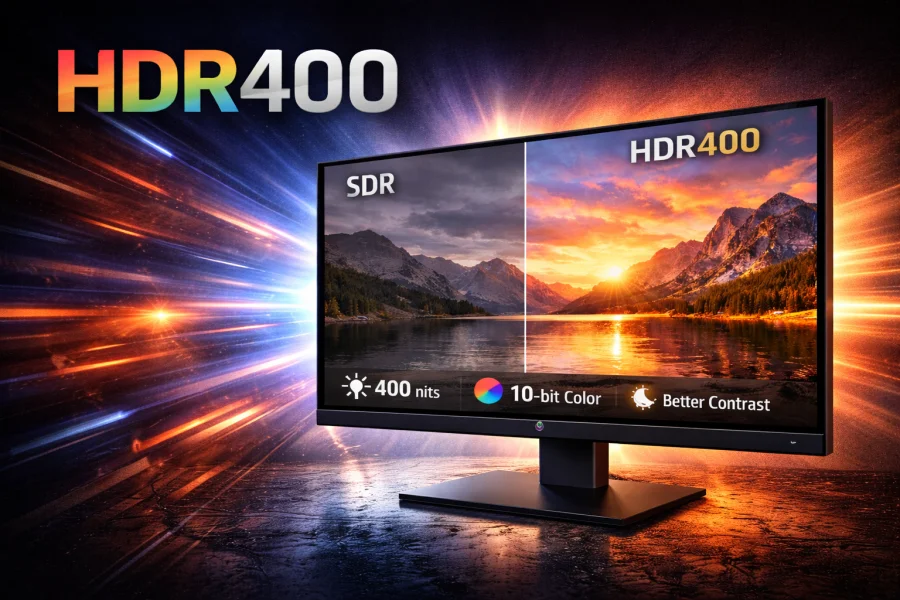
HDR400: Understanding Entry-Level HDR Display Technology