If you have ever noticed your game looking slightly “off” during fast movement, with images appearing to tear horizontally across the screen, you have already encountered the problem that V-SYNC was designed to solve.
It is one of the most commonly toggled settings in PC gaming, yet many players flip it on or off without fully understanding what it actually does. This article breaks down exactly what V-SYNC is, how it works, and when you should use it.
What Is V-SYNC And How Does It Work?
V-SYNC, short for Vertical Synchronization, is a display technology that synchronizes your graphics card’s output frame rate with your monitor’s refresh rate. To understand why this matters, you first need to understand what happens when they fall out of sync.
Your monitor refreshes its image at a fixed rate, measured in hertz (Hz). A 60Hz monitor redraws the screen 60 times per second. Your GPU, on the other hand, renders frames as fast as it can, and that speed varies depending on what is happening in the scene.
When the GPU is pushing out frames faster than the monitor can display them, the monitor may start drawing a new frame before it has finished displaying the previous one. The result is screen tearing, a visual glitch where two or more frames appear on screen at the same time, split by a jagged horizontal line.
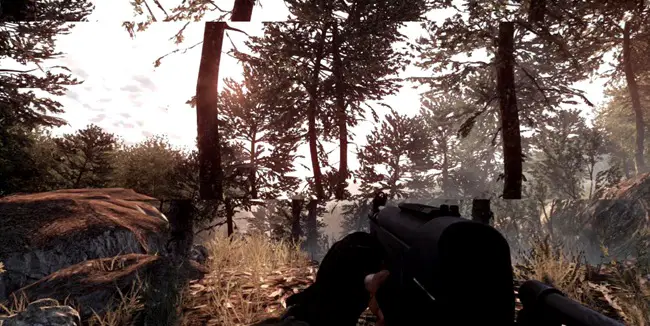
V-SYNC fixes this by capping the GPU’s output to match the monitor’s refresh rate. If your monitor runs at 60Hz, V-SYNC tells the GPU to stop and wait at the end of each frame until the monitor is ready to display the next one. This keeps the two in lockstep, eliminating tearing entirely.
The “vertical” in the name comes from the old cathode ray tube era, when monitors used an electron beam that swept across the screen horizontally and then reset vertically to the top. V-SYNC was timed to this vertical reset signal.
Modern LCD and OLED displays work very differently, but the name and the core concept carried over.
Most games implement V-SYNC through the graphics driver or in-game settings. When enabled, the GPU renders a frame, waits for the monitor’s refresh cycle to begin, sends the frame, then starts on the next one. This creates a clean, synchronized pipeline.
Pros And Cons
Like most graphics settings, V-SYNC comes with real tradeoffs. Whether it helps or hurts your experience depends heavily on your hardware and the type of game you are playing.
Advantages
The most obvious benefit is the complete elimination of screen tearing. For games with slow or deliberate pacing, like strategy games, RPGs, or cinematic story-driven titles, V-SYNC can make the image feel clean and polished. It also prevents the GPU from running unnecessarily hot.
Without a frame cap, the GPU will render as many frames as physically possible, even in menus or simple scenes where thousands of frames per second serve no purpose. V-SYNC acts as a governor, keeping power draw and temperatures more reasonable.
Disadvantages
The most criticized issue is input lag. When V-SYNC is active, the GPU has to wait for the monitor’s refresh window before delivering a frame. This introduces a delay between your physical input, a mouse click or key press, and the moment that action appears on screen.
In competitive or fast-paced games, even a few milliseconds of added latency can affect performance and feel noticeably worse.
The second major problem is frame rate stuttering. V-SYNC does not just cap frames, it locks them to multiples of the refresh rate. On a 60Hz monitor, if your GPU drops below 60fps even slightly, V-SYNC immediately cuts the frame rate in half to 30fps to maintain synchronization.
This creates a jarring, inconsistent experience where the game lurches between smoothness and slowdown depending on scene complexity. This half-rate fallback is one of the most frustrating behaviors V-SYNC exhibits, and it makes performance feel worse than it sometimes actually is.
When Should You Enable Or Disable V-SYNC?
The answer depends on what you are playing and what bothers you more: tearing or latency.
Enable V-SYNC when:
You are playing single-player games where visual quality matters more than split-second reactions. Games like The Witcher, Red Dead Redemption, or any atmospheric open world title benefit from tear-free visuals without the drawbacks becoming noticeable.
If your GPU is significantly more powerful than what the game demands, meaning it is consistently rendering well above your monitor’s refresh rate, tearing will be frequent and V-SYNC will smooth things out without much latency penalty.
It is also worth enabling V-SYNC if you do not have access to adaptive sync technologies (covered in the next section) and screen tearing is visually distracting to you. Some people are far more sensitive to tearing than others, and if it breaks immersion, V-SYNC is a reasonable trade.
Disable V-SYNC when:
You are playing competitive multiplayer games. Shooters, fighting games, MOBAs, and battle royale titles demand low input latency above all else. The extra lag introduced by V-SYNC can genuinely put you at a disadvantage and makes the controls feel sluggish. Most competitive players disable it entirely and accept tearing as the lesser evil.
You should also disable it if your GPU struggles to maintain your monitor’s refresh rate consistently. If you are frequently dipping below 60fps on a 60Hz monitor, V-SYNC’s half-rate fallback will make the experience noticeably worse.
In that scenario, disabling V-SYNC and setting a manual frame cap just below your monitor’s refresh rate, such as 58fps, can provide a smoother result with minimal tearing.
Are There Any Alternatives To V-SYNC?
Yes, and in most cases they are better. The two dominant alternatives are AMD FreeSync and NVIDIA G-Sync, both of which fall under the broader category of adaptive sync technology.
Rather than locking the frame rate to the monitor’s refresh rate, adaptive sync does the opposite: it makes the monitor dynamically adjust its refresh rate to match whatever the GPU is currently outputting.
If the GPU renders 47 frames in a second, the monitor runs at 47Hz. If it jumps to 83 frames, the monitor follows. The result is no screen tearing and no input lag penalty, since the GPU never has to wait for a refresh window.
G-Sync is NVIDIA’s proprietary solution, requiring a special module built into the monitor. It tends to be the more expensive option but is known for precise, low-latency performance.
FreeSync is AMD’s open standard, which is royalty-free and has been adopted broadly across monitors at various price points. NVIDIA also supports FreeSync monitors through a feature called G-Sync Compatible, though the experience can vary depending on the monitor’s certification status.
For those without adaptive sync hardware, there is also Fast Sync and Enhanced Sync, offered by NVIDIA and AMD respectively. These are hybrid approaches that allow the GPU to render freely without waiting for a refresh cycle but only deliver complete, non-torn frames to the monitor. They reduce tearing and cut some of the input lag associated with traditional V-SYNC, though they are not as clean as true adaptive sync.
A simple frame rate cap, set through tools like NVIDIA’s in-driver limiter or third-party software like RivaTuner Statistics Server, is another underrated option. Capping your frame rate slightly below your monitor’s refresh rate reduces tearing significantly and avoids the latency hit of V-SYNC, without requiring any special hardware.
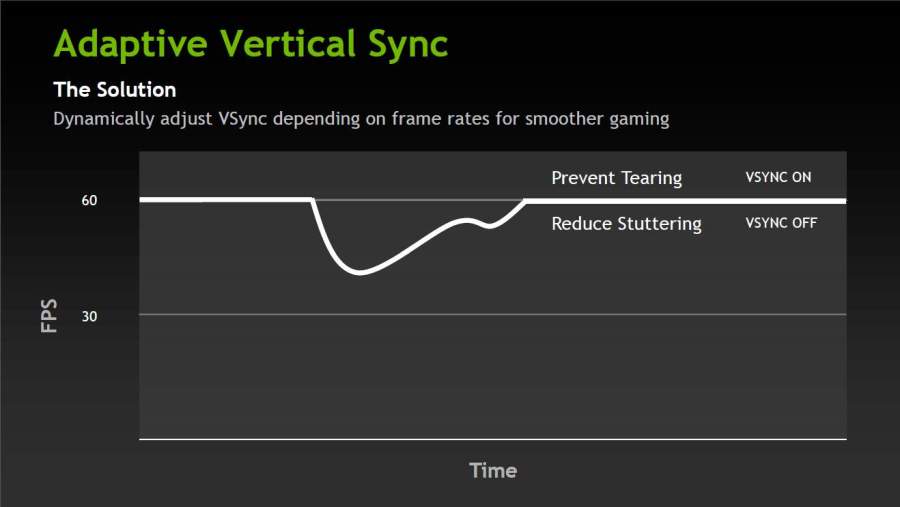
Adaptive V-SYNC is a feature that is available on some NVIDIA graphics cards, and it can be enabled in the NVIDIA driver settings. Adaptive V-SYNC works by turning V-SYNC on when your frame rate is higher than your monitor’s refresh rate, and turning it off when it is lower. This way, you can avoid screen tearing when you have high FPS, and avoid stuttering when you have low FPS.
Conclusion
V-SYNC solves a real problem, screen tearing, but it introduces new ones in the process, particularly input lag and frame rate stuttering when performance dips. For slow, visually driven games where raw reaction time is not a factor, it remains a valid choice. For anything competitive or fast-paced, it generally does more harm than good.
The good news is that the gaming display landscape has matured considerably. Adaptive sync monitors have become widely available at affordable prices, and they address the core problem V-SYNC was created for without the downsides. If you are building or upgrading a PC gaming setup, investing in a FreeSync or G-Sync Compatible monitor will largely make the V-SYNC debate irrelevant.
Understanding what V-SYNC actually does, rather than blindly following the advice to always enable or always disable it, puts you in control of your experience. Match the setting to the game, know your hardware’s limitations, and you will always be making an informed choice.
Q&A
Is V-SYNC Better On Or Off?
It depends on what you are playing. For single-player, story-driven games where visual quality matters, turning V-SYNC on eliminates screen tearing and improves the overall look. For competitive or fast-paced multiplayer games, turning it off is the better choice since the input lag it introduces can hurt your reaction time and make controls feel sluggish.
Does V-SYNC Increase FPS?
No. V-SYNC does not increase FPS, it actually caps it to match your monitor’s refresh rate. On a 60Hz monitor, V-SYNC will limit your frame rate to 60fps regardless of how powerful your GPU is. If your frame rate drops below that cap, V-SYNC can make things worse by dropping to 30fps to maintain synchronization.
Is V-SYNC Good For You?
It can be, in the right situation. If screen tearing bothers you and you do not have an adaptive sync monitor, V-SYNC is a reasonable solution. However, for most modern gaming setups, better alternatives exist. Whether it is good for you comes down to your monitor, your GPU, and the type of games you play.
Does V-SYNC Force 60 FPS?
Not exactly. V-SYNC locks your frame rate to your monitor’s refresh rate, whatever that happens to be. On a 60Hz monitor it caps at 60fps, on a 144Hz monitor it caps at 144fps. It only forces 60fps if your monitor runs at 60Hz.
Why Do Pros Not Use V-SYNC?
Because input lag is unacceptable at a competitive level. V-SYNC introduces a delay between a physical input and the action appearing on screen, and in games where milliseconds decide outcomes, that delay is a real disadvantage. Pros prioritize the lowest possible latency over visual polish every time.
Which Is Better, G-Sync Or V-SYNC?
G-Sync is better in almost every way. It eliminates screen tearing without adding input lag, handles frame rate fluctuations smoothly without the half-rate stutter drop, and delivers a consistently cleaner experience. The only advantage V-SYNC has is that it costs nothing and requires no special hardware. If your monitor supports G-Sync, there is very little reason to use traditional V-SYNC.
Read Next
GTG vs MPRT: Display Response Times Explained
Mini LED vs OLED: Which Display Technology Reigns Supreme?
QLED vs OLED: Understanding the Future of Television Display Technology
HDR10 vs HLG: Comparing HDR Technologies
HDR True Black 400, 500, 600: New Era of Darker Blacks in Display Technology
Google TV vs Samsung Tizen: Which Smart TV Platform Is Right for You?
4K vs 5K Resolution: Which One Do You Really Need?
MLA OLED: Brighter Displays with Micro Lens Array
ASUS ROG Strix OLED XG27AQDMG Review: QHD, Glossy OLED, 240Hz, 0.03ms, 99% DCI-P3; A Brilliant, Glossy Victory
UHD vs. QHD: Which Resolution Is Right for You?
HDR10 Pro: LG’s Enhanced HDR Processing Technology
4K Resolution: Ultimate Experience for TVs and Monitors
Local Dimming: Enhancing Contrast on TVs and Monitors